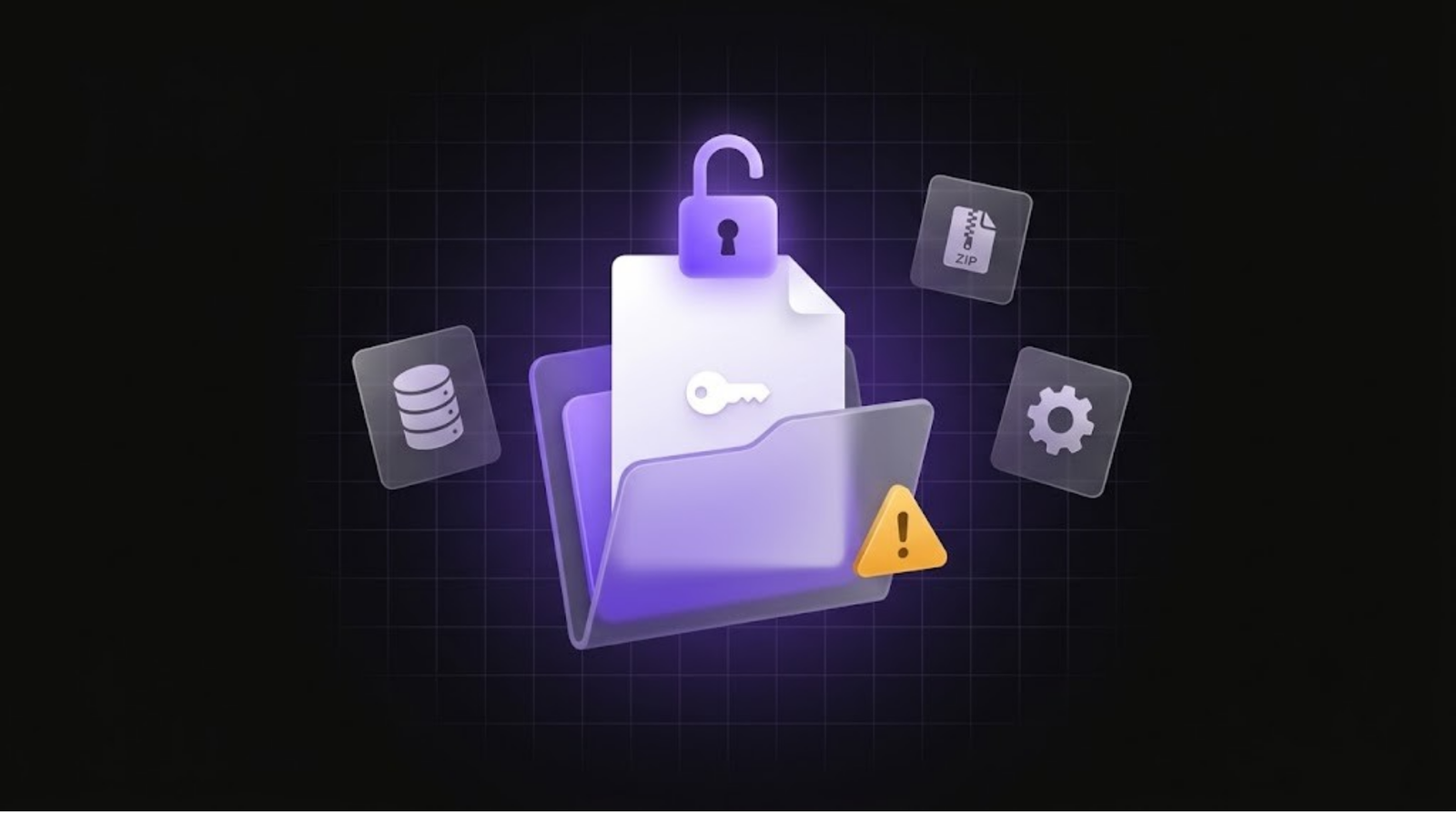
Some of the most serious website security problems involve no hacking at all. A configuration file or backup archive is left in a public folder, and anyone who types the right address can download it. These files often hold database passwords, API keys and even a full copy of your site. Automated bots check for them constantly, so a file that stays exposed is likely to be found. Here is what these files are, why they end up public, and how to check your own website.
What Are Exposed Sensitive Files?
Your web server serves everything inside its public folder to anyone who asks. Files that were never meant to be public but end up there include:
- Environment files (
.env): used by frameworks like Laravel and Node.js to store database passwords, API keys, mail credentials and app secrets. - Version control folders (
.git): can reveal your source code and its history. - Backup files: archives such as
backup.ziporsite.tar.gz, database dumps ending in.sql, and copies of config files likewp-config.php.bak. - Debug and log files: such as
debug.logandphpinfo.php, which expose file paths, errors and server details. - Dependency files:
composer.json,package.jsonand lock files, which list the software your site uses and its versions. - Directory listings: folders such as
/uploads/or/backup/that show an “Index of” page listing every file inside.
How Do These Files End Up Public?
- A developer makes a quick backup before a migration or update and forgets to delete it.
- The whole project folder is uploaded to the server, including hidden files like
.envand.git. - The server’s document root points at the project folder instead of its
publicsubfolder. - A staging or old version of the site is left on the server after a redesign.
- Directory listing is switched on, so folders show all their contents.
What Can Go Wrong?
An exposed .env file can hand over your database login, payment keys and email credentials in one download. An exposed backup can contain your entire website and customer data. Depending on what is inside, the result can be stolen data, someone sending spam through your email account, unexpected cloud bills or a full site takeover. The file does not need to be linked from anywhere. Bots simply request a list of common filenames on every site they can find.
How to Check Your Own Website
Only test websites you own or manage. In your browser, try visiting these addresses on your own domain:
yourdomain.com/.envyourdomain.com/.git/HEADyourdomain.com/wp-config.php.bakyourdomain.com/backup.zipyourdomain.com/debug.logyourdomain.com/uploads/(check it does not show an “Index of” page)
A safe result is a “not found” (404) or “forbidden” (403) page. If a file downloads, or you can read settings or code in your browser, treat it as urgent. Be careful with sites that show a normal page for every address, since a 200 response alone does not mean a file is exposed. Check what actually appears. You can also search Google for site:yourdomain.com ext:sql | ext:bak | ext:log to see whether any such files have been indexed.
What to Do If You Find an Exposed File
- Remove it or block access straight away.
- Treat everything inside it as compromised. Change the database password, API keys, mail credentials and any app secret keys it contained. Deleting the file is not enough, because someone may already have copied it.
- Check your server logs to see whether the file was requested, and look for unusual activity on your accounts and services.
- Check connected services such as payment, email and cloud accounts for activity you do not recognise.
- Ask a developer for help if you are not sure what the file gave access to.
How to Prevent It
- Keep secrets outside the public web folder, and point your server at the
publicsubfolder of your project, not the project root. - Never leave backups on the same web server in a public location. Store them off-server.
- Delete old copies, staging sites and test files after migrations and redesigns.
- Turn off directory listing, and add
.envto your.gitignorefile. - Add server rules that deny access to hidden files and backup file types.
On Nginx, a rule like this blocks hidden files while still allowing .well-known:
location ~ /\.(?!well-known) {
    deny all;
}
On Apache, this blocks hidden files and common backup extensions. Remove any extension you genuinely serve as a download, and test on a staging copy first:
<FilesMatch "(^\.|\.(bak|old|sql|swp|log)$)">
    Require all denied
</FilesMatch>
Check for Exposed Files Automatically
Checking addresses by hand works, but it is easy to miss one. Our free website security scanner requests a list of commonly exposed files and folders on your domain and flags any that respond, along with other issues like missing security headers and email records. For more tests you can run yourself, see our guide on how to check if your website is secure, and our explainer on SPF, DKIM and DMARC. If you find an exposed file and are unsure what to do next, talk to our team.