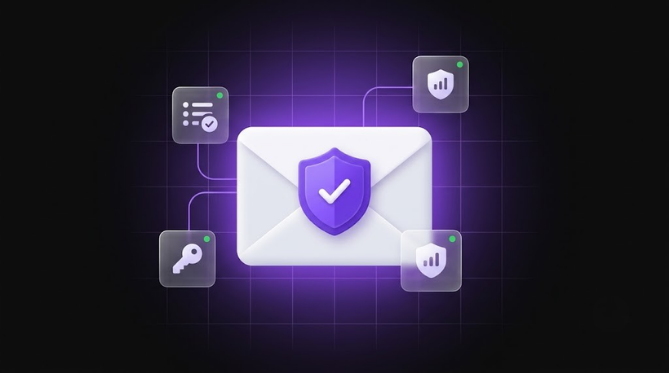
If your business emails keep landing in spam, or a customer has ever received a fake email that looked like it came from you, the cause is often missing email authentication. SPF, DKIM and DMARC are three DNS settings that prove an email really came from your domain. They sound technical, but the idea behind them is simple, and setting them up is one of the cheapest ways to protect your brand and improve email delivery.
Why Anyone Can Fake Your Email Address by Default
Email was designed long before anyone worried about fraud. By default, nothing stops a stranger from sending a message with “From: you@yourdomain.com” on it. Attackers use this to send fake invoices, phishing links and payment requests that appear to come from your company. SPF, DKIM and DMARC give receiving mail servers a way to check whether a message is genuine before it reaches an inbox.
What Is SPF?
SPF (Sender Policy Framework) is a list of the servers that are allowed to send email for your domain. Think of it as a guest list at the door. When a message arrives, the receiving server looks up your SPF record and checks whether the sending server is on the list. An SPF record is a single TXT record in your DNS and looks something like this:
v=spf1 include:_spf.google.com ~all
This example says that Google’s mail servers may send for your domain, and anything else should be treated with suspicion.
What Is DKIM?
DKIM (DomainKeys Identified Mail) adds a digital signature to every email you send. The signature is created with a private key held by your email provider and checked against a public key published in your DNS. If the signature checks out, the receiving server knows the message really came from your domain and was not changed on the way. It works like a tamper-proof seal on an envelope. Your email provider usually gives you the DKIM record to add to your DNS.
What Is DMARC?
DMARC (Domain-based Message Authentication, Reporting and Conformance) sits on top of SPF and DKIM. It does two things: it tells receiving servers what to do with messages that fail the checks (nothing, send to spam, or reject), and it lets you receive reports about who is sending email using your domain. A starter DMARC record looks like this:
v=DMARC1; p=none; rua=mailto:dmarc@yourdomain.com
The p=none setting only monitors, so nothing is blocked while you learn what is sending mail for you.
Why Your Business Needs All Three
- Protection from spoofing: attackers find it much harder to send convincing fake emails from your domain.
- Better inbox delivery: mailbox providers trust authenticated mail more, so your genuine emails are less likely to land in spam. Google and Yahoo have required SPF, DKIM and DMARC for bulk senders since February 2024.
- Brand trust: your customers are less likely to be tricked by a fake message using your name.
- Visibility: DMARC reports show you every service that sends email on your behalf, including ones you forgot about.
How to Check If Your Domain Has Them
Use any free DNS lookup tool and search for TXT records on your domain. Look for a record starting with v=spf1 for SPF, a TXT record at _dmarc.yourdomain.com starting with v=DMARC1 for DMARC, and the DKIM record your email provider told you to add. DKIM is stored under a “selector” name chosen by your provider, so you need to know that name to look it up. Our free website security scanner checks whether your SPF and DMARC records exist as part of its DNS checks, and tells you in plain English if either is missing.
How to Set Them Up
- Step 1, SPF: list every service that sends email for you (your mailbox provider, your newsletter tool, your invoicing software) in one SPF record.
- Step 2, DKIM: turn on DKIM in your email provider’s admin settings and add the record they give you to your DNS.
- Step 3, DMARC: publish a DMARC record with
p=noneand a reporting address, and review the reports for a few weeks. - Step 4, tighten: once all your legitimate senders pass, move DMARC to
p=quarantine, and later top=rejectif you are comfortable.
Common Mistakes to Avoid
- Publishing more than one SPF record. A domain should have only one. Combine them into a single record.
- Forgetting third-party senders. Newsletter tools, CRMs and invoicing software that send as your domain must be included, or their emails will fail.
- Jumping straight to reject. Going to
p=rejectbefore checking the reports can block your own legitimate emails. - Ignoring website emails. Contact forms and order emails sent straight from a WordPress server often fail authentication. Sending them through your proper mail provider or an SMTP service fixes this.
Email authentication is one part of a wider security picture. For the other basics, see our guide on how to check if your website is secure. If you would like help setting up SPF, DKIM and DMARC without breaking your existing email, talk to our team.