Most website owners find out their site has a security problem the hard way: a browser warning, a hacked homepage, or a customer saying your emails landed in spam. The good news is that many of the most common problems can be spotted in a few minutes, without logging into your server or reading any code. Here are seven things you can test today to see how secure your website really is.
1. Check Your HTTPS and SSL Certificate
Open your site and look at the address bar. It should show a padlock and start with https://. Then type the http:// version of your address. It should redirect to https automatically. Also check when your certificate expires. An expired certificate shows visitors a full-page browser warning, and many of them will leave immediately.
2. Look at Your Security Headers
Security headers are instructions your server sends to the browser, such as which scripts may run and whether your site can be loaded inside another site’s frame. The important ones are Content-Security-Policy, Strict-Transport-Security (HSTS), X-Frame-Options and X-Content-Type-Options. A missing header is not always a vulnerability on its own, but together they make common attacks like cross-site scripting and clickjacking much harder.
3. Test for Exposed Sensitive Files
Developers sometimes leave files in the public web folder that should never be there: environment files (.env), Git folders, database dumps and old backup archives. On your own website, try visiting yourdomain.com/.env. You should get a “not found” or “forbidden” page, never the contents of a file. If you can see anything, treat it as urgent, because those files often contain passwords and API keys.
4. Keep Your CMS, Plugins and Themes Updated
Outdated software is one of the most common ways websites get compromised. If you use WordPress, check your dashboard for pending updates to the core, plugins and themes. Delete plugins you no longer use, since inactive plugins can still be exploited. Also check that your site does not reveal exact version numbers in its source code, as that tells attackers which known issues to try.
5. Review Your Cookie Settings
Cookies that keep users logged in should be marked Secure (sent only over HTTPS), HttpOnly (not readable by scripts) and given a sensible SameSite value. Without these flags, a login cookie is easier to steal or misuse. You can see your cookies in your browser’s developer tools under the Application or Storage tab.
6. Check Your Email Authentication (SPF, DKIM and DMARC)
Your website security also includes your domain. Without SPF, DKIM and DMARC records, someone can send emails that appear to come from your domain, and your genuine emails are more likely to be marked as spam. You can look up your domain’s DNS records with any free DNS lookup tool and check that all three exist.
7. Look at Your Login and Admin Exposure
Check how easy it is for strangers to find and attack your login page. On WordPress, common weak spots include an enabled XML-RPC endpoint, a REST API that lists usernames, and no limit on login attempts. Use strong unique passwords, turn on two-factor authentication for admin accounts, and make sure you have recent backups stored away from your web server.
Check All of This in 30 Seconds
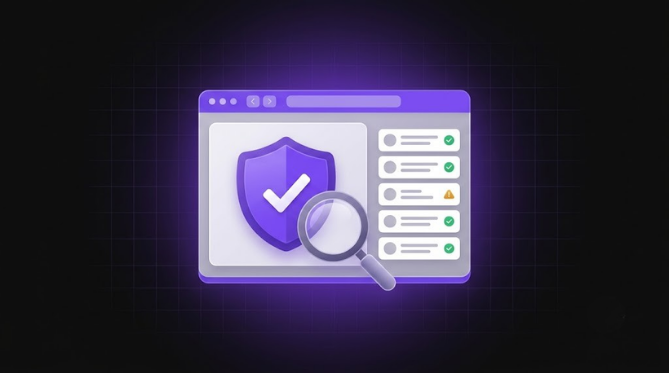
Doing these tests by hand is useful, but it takes time and some technical comfort. Our free website security scanner runs these checks for you. Enter your website address and your details, and you get a score from 0 to 100 on the page right away, with each issue explained in plain English. The full report is then emailed to you as a PDF. The scan is passive and read-only, which means it only looks at what any visitor’s browser can already see and never tries to break into anything.
What an External Scan Cannot Tell You
An outside scan shows how your website looks from the internet. It cannot see inside your server, review your custom code, or confirm that your site is free of malware. If your scan shows serious issues, or you would like someone to review the code and setup behind your site, talk to our team and we will help you fix what matters first.