Malware infections are one of the most common threats website owners face. If your WordPress website has been hacked or compromised, it’s crucial to act quickly. But the challenge is removing malware without losing important files, customer data, or SEO rankings. The good news is, you can clean your WordPress website while keeping your data safe. In this guide, we’ll show you how to remove malware from your website without losing data, along with actionable steps to secure your site against future attacks.
What is Website Malware?
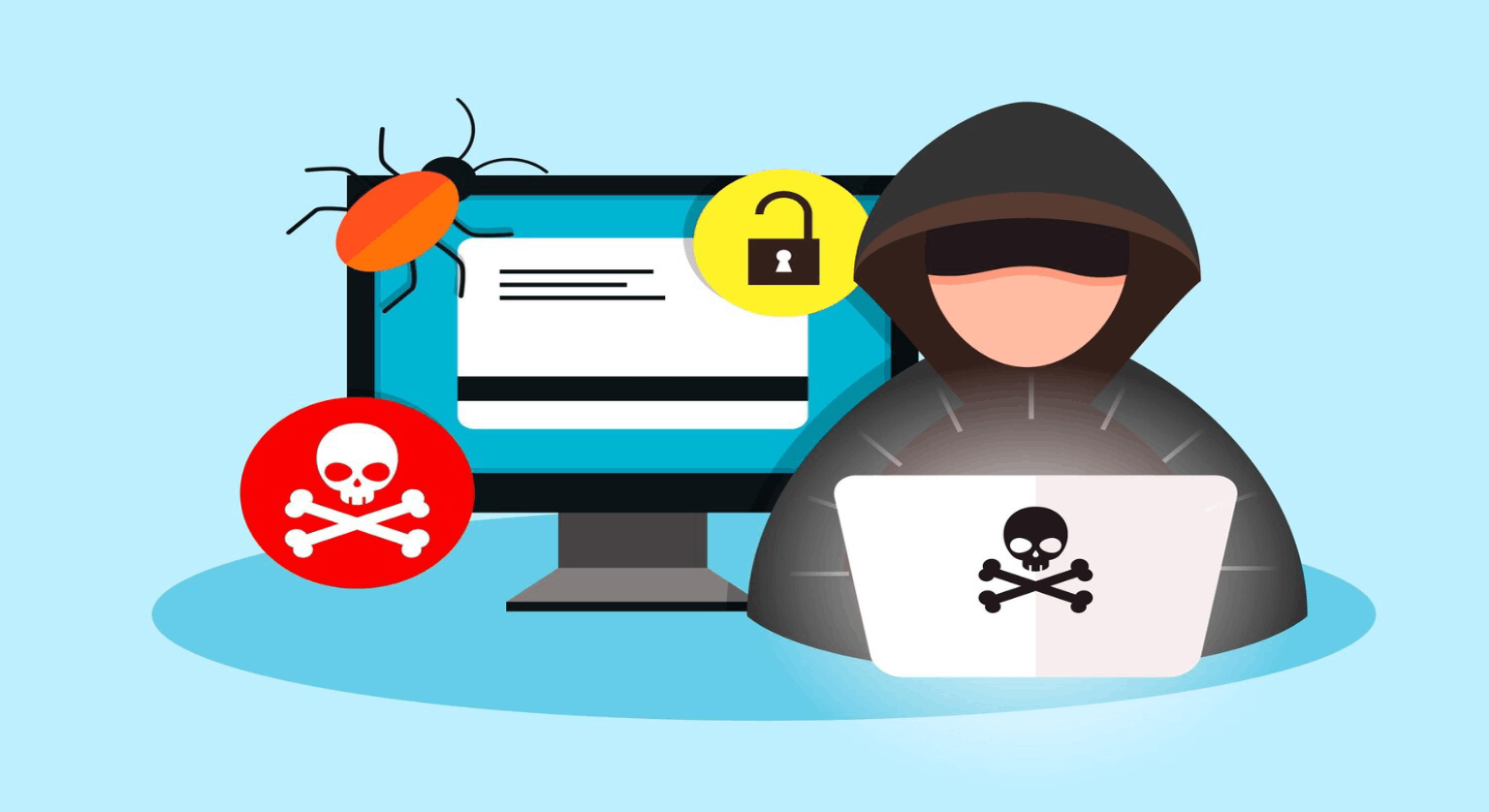
Website malware is malicious software injected into your site’s files or database. Hackers often use malware to steal sensitive information, redirect visitors to harmful websites, or even take control of your WordPress site. Common types of malware include phishing pages, backdoors, ransomware, and spam injections.
Signs Your WordPress Website Has Malware
Not sure if your site has been compromised? Here are some warning signs that indicate a malware infection:
- Your website suddenly becomes very slow or unresponsive.
- Search engines flag your site with a “This site may be hacked” warning.
- Unexpected redirects take users to unknown websites.
- You notice strange files or scripts in your hosting account.
- Customers report suspicious activity when using your site.
Steps to Remove Malware Without Losing Data
1. Backup Your Website
Before you begin any malware removal process, create a full backup of your WordPress files and database. This ensures you have a safe copy in case anything goes wrong during cleanup. You can use backup plugins or your hosting provider’s tools.
2. Run a WordPress Malware Scan
Use a trusted WordPress malware scanner plugin or online security tool to identify infected files. Scanning helps pinpoint the exact malware locations in your site without having to manually inspect every file.
3. Remove Infected Files
Once you know where the malware is, carefully remove the infected files. Do not delete critical core files unless absolutely necessary. If you are unsure, replace core WordPress files with fresh copies from WordPress.org while keeping your wp-content folder intact.
4. Clean the Database
Malware can also infect your WordPress database by inserting malicious scripts. Use a database cleanup tool or manually review suspicious entries. Always keep a backup before making changes.
5. Reinstall Plugins and Themes
Hackers often exploit outdated plugins and themes. Delete unnecessary ones and reinstall the latest clean versions of your active themes and plugins. This prevents hidden backdoors from reappearing.
6. Secure Your Website
After removing malware, strengthen your site’s defenses. Install a WordPress firewall security plugin, enable brute force attack protection, and schedule automated scans. This ensures long-term protection for your WordPress website.
How to Prevent Future Malware Attacks
Cleaning your website is only half the battle. To prevent reinfection, follow these security best practices:
- Update WordPress core, plugins, and themes regularly.
- Use strong and unique passwords for all admin accounts.
- Enable two-factor authentication for WordPress login.
- Limit login attempts to prevent brute force attacks.
- Schedule regular WordPress security scans and backups.
Why Professional Help Matters
Removing malware from a website without losing data requires technical expertise. If you’re not confident, it’s best to seek professional help. We specialize in WordPress malware removal, malware protection, and website security audits. Our team ensures your website is cleaned safely and protected against future threats.