



Blogs
Services
Web Development, Website Strategy, WordPress Tips 23 Sep 2025
The Ultimate Guide to Preventing WordPress Security Problems

Writen by Tech Contributors
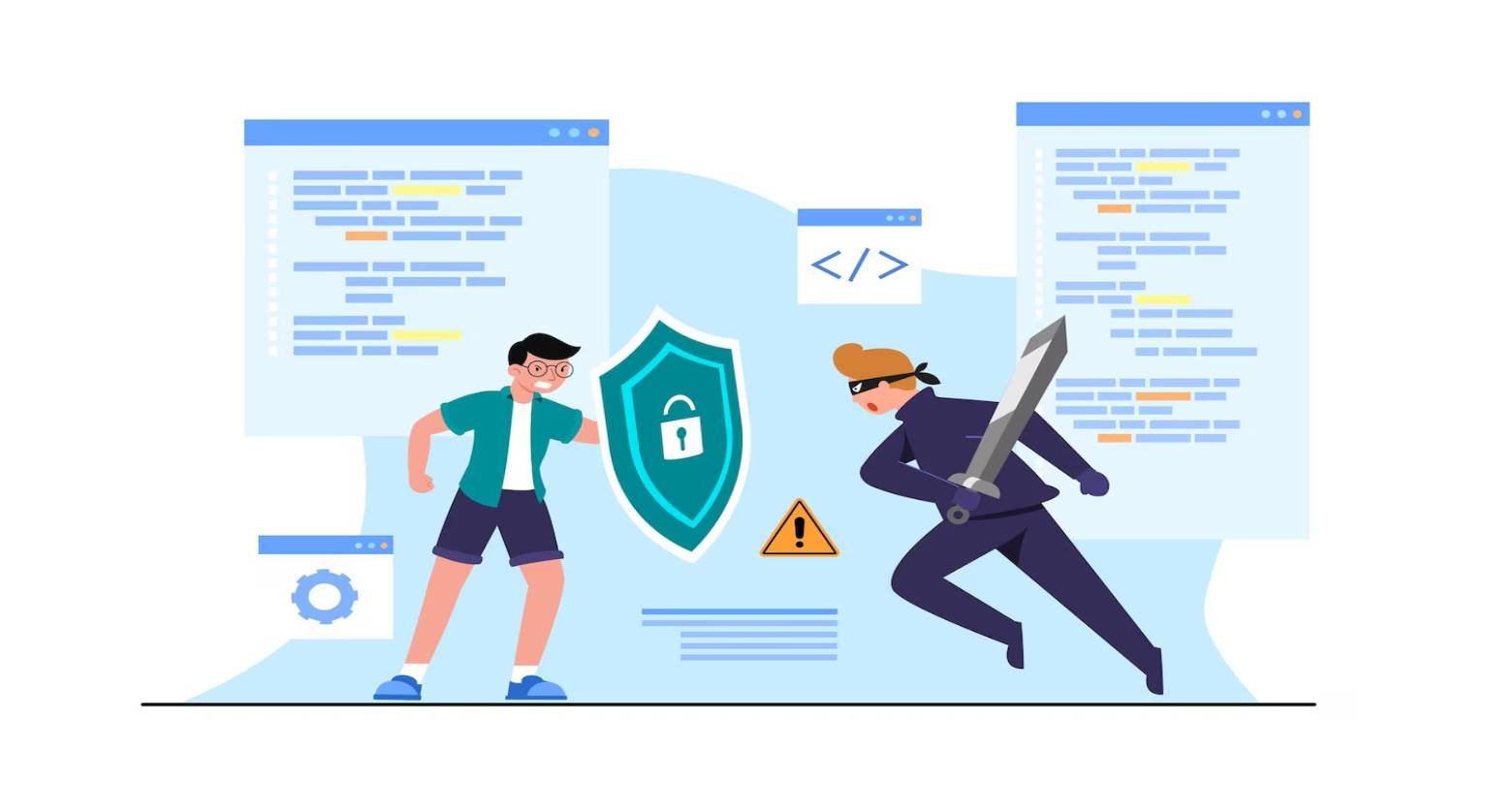
Understanding and Overcoming Common WordPress Security Problems
WordPress security problems stem from a range of vulnerabilities, from outdated software and weak credentials to malicious code injections, ultimately threatening data integrity, user trust, and site availability. Proactive security measures, robust password policies, regular updates, and continuous monitoring are paramount for effective mitigation.
WordPress powers over 43% of all websites, making it a prime target for cybercriminals. The sheer popularity of the platform, combined with the vast ecosystem of themes and plugins, unfortunately, presents numerous potential entry points for attackers. Ignoring these risks can lead to devastating consequences, including data loss, SEO penalties, loss of customer trust, and significant financial costs for recovery. Understanding the common threats and implementing preventive strategies is not just a best practice; it’s a necessity for any WordPress site owner.
What Are the Most Common WordPress Security Problems?
Recognizing the typical vectors for attacks is the first step in fortifying your WordPress site. Here are the prevalent issues that site owners frequently encounter:
Outdated Software (Core, Themes, Plugins)
- Vulnerability Exploitation: One of the leading causes of wordpress security problems is running outdated versions of WordPress core, themes, or plugins. Developers regularly release updates to patch newly discovered security flaws. Ignoring these updates leaves known vulnerabilities open for attackers to exploit.
- Ease of Access: Automated bots constantly scan websites for these known vulnerabilities, making it easy for even novice attackers to gain unauthorized access if your software isn’t current.
Weak Passwords and User Credentials
- Brute-Force Attacks: Many successful breaches begin with weak or easily guessed passwords. Attackers use automated scripts to try thousands of password combinations until they find the right one.
- Lack of Two-Factor Authentication (2FA): Without 2FA, a compromised password grants full access. 2FA adds an extra layer of security, requiring a second verification step (e.g., a code from your phone).
- Excessive Administrator Accounts: Having too many users with administrative privileges increases the attack surface.
Malware and Injections
Malware refers to any malicious software designed to harm or exploit your site. This can include:
- Backdoors: Hidden methods to bypass normal authentication, allowing attackers to regain access even after you’ve cleaned your site.
- Phishing Pages: Code injected to create fake login pages on your site, designed to steal user credentials.
- SEO Spam: Malicious code that redirects your visitors to spammy sites or injects unwanted links, severely damaging your site’s reputation and search engine rankings.
- Defacement: When attackers alter your website’s content or appearance to display their own messages or images.
Detecting and removing these insidious threats requires specialized tools. A reliable WP malware scanner can help identify hidden malicious code and vulnerabilities, making it crucial for timely detection and cleanup of your WordPress installation.
Brute-Force Login Attacks
These attacks specifically target your WordPress login page (wp-login.php) by attempting numerous username and password combinations until a match is found. While related to weak credentials, brute-force attacks are a distinct method of trying to gain unauthorized entry, often using vast botnets.
SQL Injection and Cross-Site Scripting (XSS)
- SQL Injection: Attackers insert malicious SQL code into input fields to manipulate your database, potentially revealing sensitive information or gaining control over your site.
- Cross-Site Scripting (XSS): Malicious scripts are injected into legitimate web pages, which are then executed in the victim’s browser, leading to session hijacking, data theft, or website defacement. These advanced wordpress security problems often target vulnerabilities in themes or plugins.
How to Prevent WordPress Security Problems: Best Practices
Prevention is always better than cure. Implementing these best practices will significantly reduce your site’s vulnerability to attacks:
Keep Everything Updated
- Regular Updates: Make it a habit to update your WordPress core, themes, and plugins as soon as new versions are released. Enable automatic updates for minor releases if your hosting environment supports it.
- Staging Environment: For major updates, especially on live sites, consider testing them in a staging environment first to catch any compatibility issues.
Implement Strong Passwords and User Roles
- Complex Passwords: Use unique, long (12+ characters), and complex passwords (mix of upper/lower case, numbers, symbols) for all user accounts, especially administrators.
- Two-Factor Authentication (2FA): Enable 2FA for all users, particularly administrators, using a plugin or hosting feature.
- Principle of Least Privilege: Assign users only the roles and permissions they absolutely need. Limit the number of administrator accounts.
- Change Default "admin" Username: If your site still uses "admin" as a username, change it immediately as it’s a primary target for attackers.
Use a Reputable Security Plugin
A good WordPress security plugin acts as a comprehensive shield for your site:
- Firewall (WAF): Blocks malicious traffic before it even reaches your site.
- Malware Scanning: Regularly scans your files for malicious code and suspicious activity.
- Login Hardening: Limits login attempts, detects brute-force attacks, and can enforce strong passwords.
- Activity Logging: Tracks user and system activities, helping to identify suspicious behavior.
Regular Backups
- Automated Backups: Set up automated daily or weekly backups of your entire WordPress site (files and database).
- Off-Site Storage: Store backups in a secure, off-site location (e.g., cloud storage) separate from your hosting server.
- Test Backups: Periodically test your backup restoration process to ensure they are viable in an emergency.
Secure Hosting Environment
- Reputable Host: Choose a hosting provider known for its security measures, including strong server-side firewalls, isolated environments, and regular malware scanning.
- SSL Certificate (HTTPS): Ensure your site uses HTTPS (SSL certificate) to encrypt data transmission between your site and users, protecting sensitive information.
- Managed WordPress Hosting: Often includes enhanced security features, automatic updates, and expert support specifically tailored for WordPress.
Hardening WordPress Core
- Disable File Editing: Add
define('DISALLOW_FILE_EDIT', true);to your wp-config.php file to prevent theme and plugin file editing from the WordPress admin dashboard. - Change Default Login URL: Use a plugin to change your wp-admin and wp-login.php URLs to custom ones, making it harder for bots to find your login page.
- Limit Login Attempts: Implement a system that locks out users after a certain number of failed login attempts.
What to Do When Facing WordPress Security Problems (Recovery)
Even with the best precautions, a breach can occur. Knowing how to react swiftly is crucial:
Identify the Breach
The first step is to confirm the breach and determine its extent. Look for:
- Unexpected changes to your site’s content or appearance.
- New, unauthorized user accounts.
- Redirects to spammy sites.
- Error messages or a completely inaccessible site.
- Suspicious files or code in your hosting account (check file modification dates).
Use a trusted security scanner to pinpoint the malicious files and database entries.
Clean Your Site
This is often the most critical and complex step:
- Isolate Your Site: Take your site offline or put it in maintenance mode to prevent further damage or spread of malware.
- Restore from Backup: If you have a clean, recent backup, this is often the fastest way to recover. Ensure the backup predates the infection.
- Manual Cleanup: If no clean backup is available, you’ll need to manually remove malicious code from your files and database. This often requires expert help.
- Reinstall Core Files: Replace all WordPress core files, themes, and plugins with fresh, official copies.
Post-Hack Security Audit
After cleaning, immediately take these steps to prevent recurrence:
- Change All Passwords: Force all users, especially administrators, to change their passwords. Also, change your database password and FTP/SFTP credentials.
- Update Everything: Ensure WordPress core, themes, and plugins are all updated to their latest versions.
- Enhance Security Measures: Review and strengthen your security plugin settings, enable 2FA, and implement any hardening measures you might have overlooked.
- Monitor Activity: Continuously monitor your site for suspicious activity using security logs.
Addressing wordpress security problems is an ongoing commitment, not a one-time fix. By adopting a proactive mindset and consistently applying robust security practices, you can significantly reduce your site’s vulnerability and ensure its long-term health and performance. Don’t wait for a breach; secure your WordPress site today.
FAQs
We’ve answered the most common questions to help you better understand this topic. Get clear insights before making any decisions.
The most common cause of WordPress security problems is outdated software, including the WordPress core, themes, and plugins. Developers regularly release updates to patch security vulnerabilities, and failing to apply these updates leaves your site exposed to known exploits.
You should update your WordPress core, themes, and plugins as soon as new versions are released. For minor core updates, automatic updates are often enabled and safe. For major core updates and all theme/plugin updates, it's best to update promptly, ideally after backing up your site or testing in a staging environment.
While a reputable security plugin is a crucial component of your WordPress security strategy, it's not a standalone solution. It must be combined with other best practices like strong passwords, regular backups, secure hosting, and keeping all software updated. A plugin acts as a shield, but you also need good practices behind it.
Immediately take your site offline or put it into maintenance mode to prevent further damage. Then, ideally, restore your site from the cleanest, most recent backup you have that predates the infection. If no clean backup is available, you will need to perform a thorough manual cleanup or seek professional help to remove all malicious code and database entries.
To create stronger passwords, use unique combinations of at least 12-16 characters, incorporating uppercase and lowercase letters, numbers, and symbols. Avoid using easily guessable information like personal details or common words. Implement a password manager and enable Two-Factor Authentication (2FA) for an extra layer of security.